
Elon® Smart first line support checklist V1.7
STEP 1. COLLECT INFORMATION FROM CUSTOMER
Customer Name | |||||||
Customer Address | |||||||
Date | Elon® serial no. | ||||||
What is the issue? | |||||||
How long have you been experiencing this issue? | |||||||
Have you had any power failures recently? | |||||||
Have you used more hot water than usual (such as having guests over), or at a different time than usual? | |||||||
Has the weather been cloudy or rainy in the last day or two? | |||||||
| Yes 🞏 | No 🞏 | Alarm message | ||||
What heating profile is the Elon Smart thermostat set to? | |||||||
What are the temperature set points? | Solar | °C | Grid | °C | |||
What is the water temperature? | |||||||
Do you have the latest version of the Elon Smart app? | |||||||
Position of geyser circuit breaker in DB (distribution board) (X) | On 🞏 | Off 🞏 | Don’t know 🞏 | ||||
Anything else to note? | |||||||
 Any alarms? (Indicated with an emphasised red exclamation mark on the home screen and with an alarm message on the status screen)
STEP 2: TROUBLESHOOTING
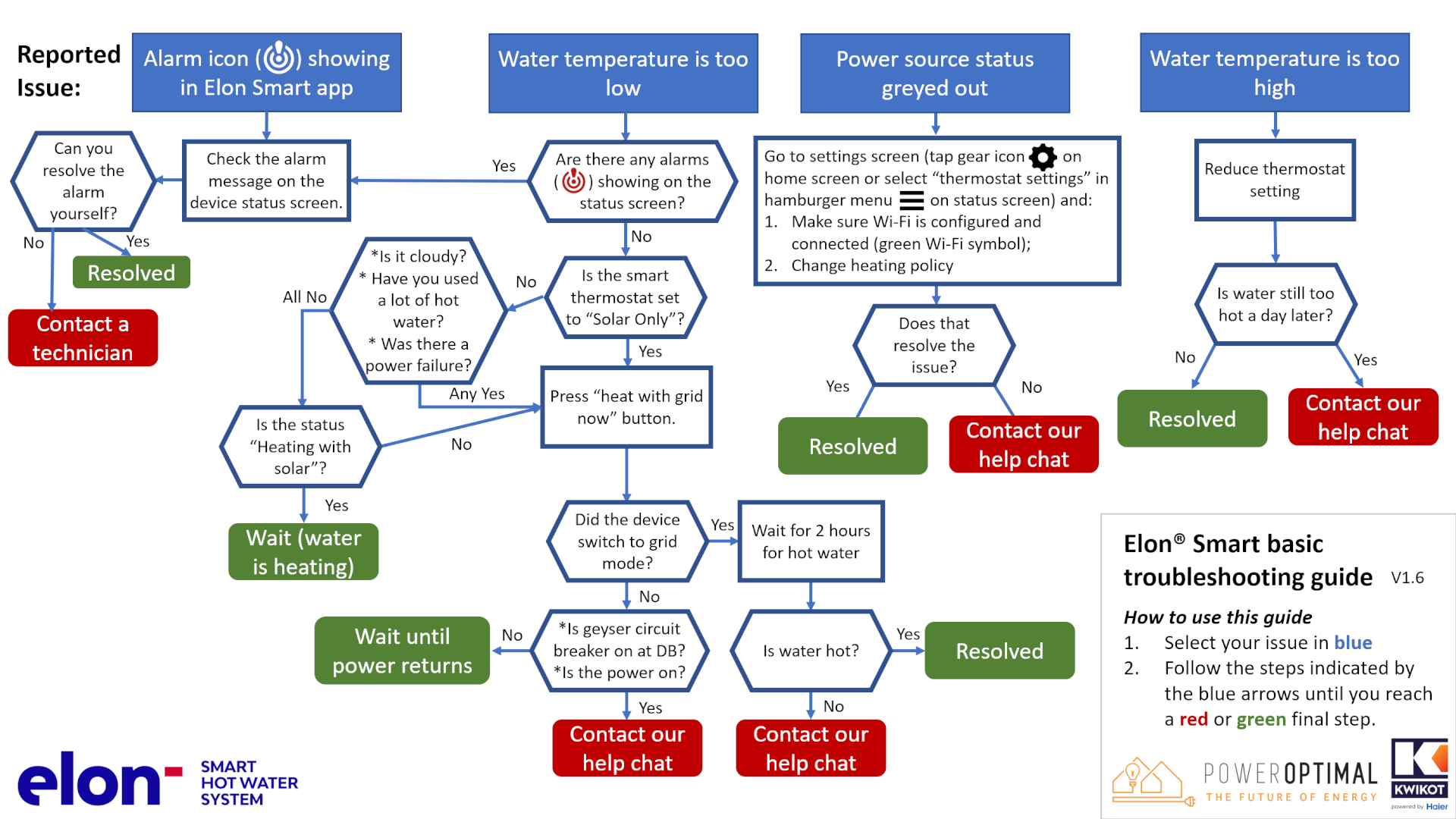
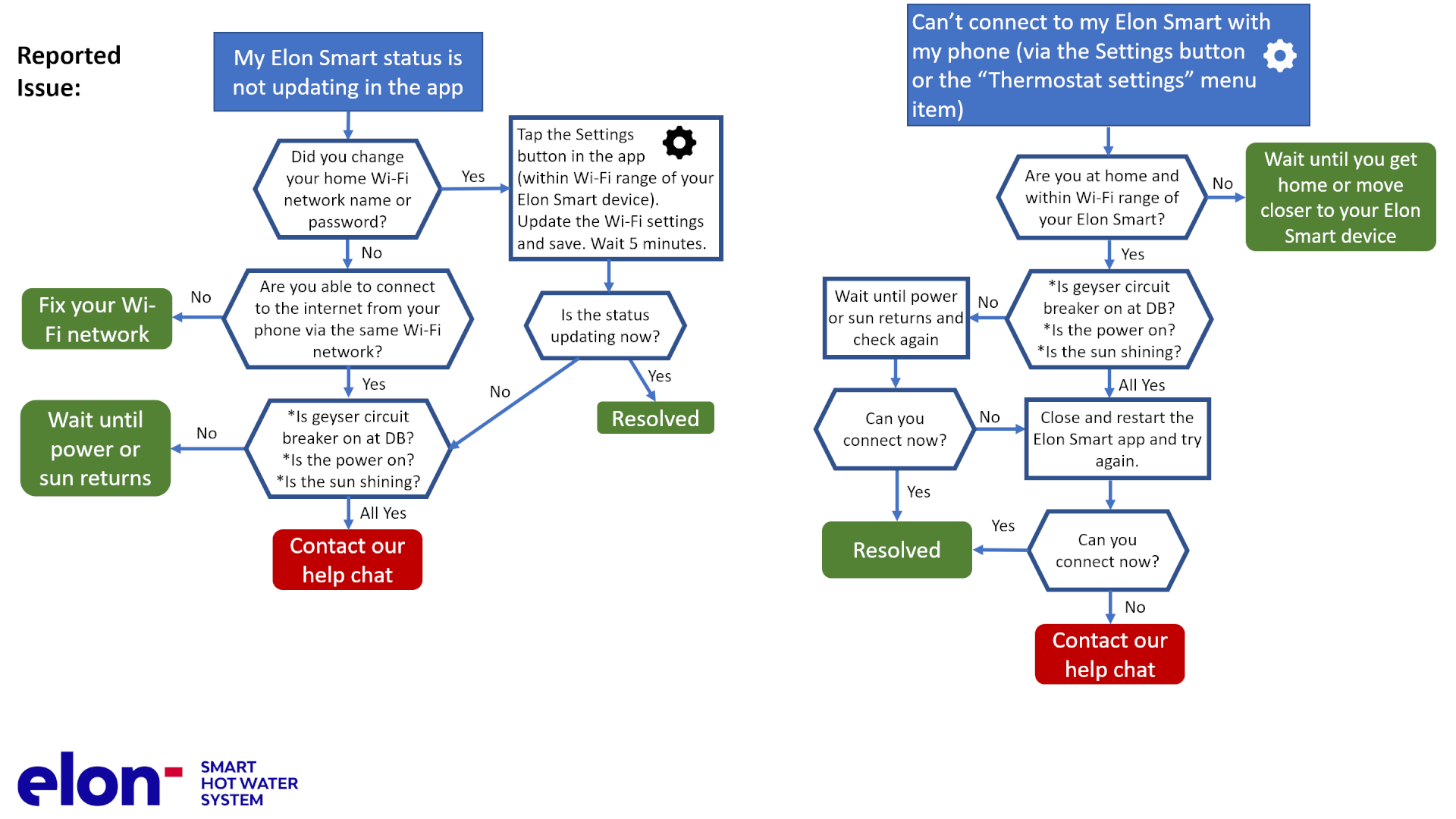
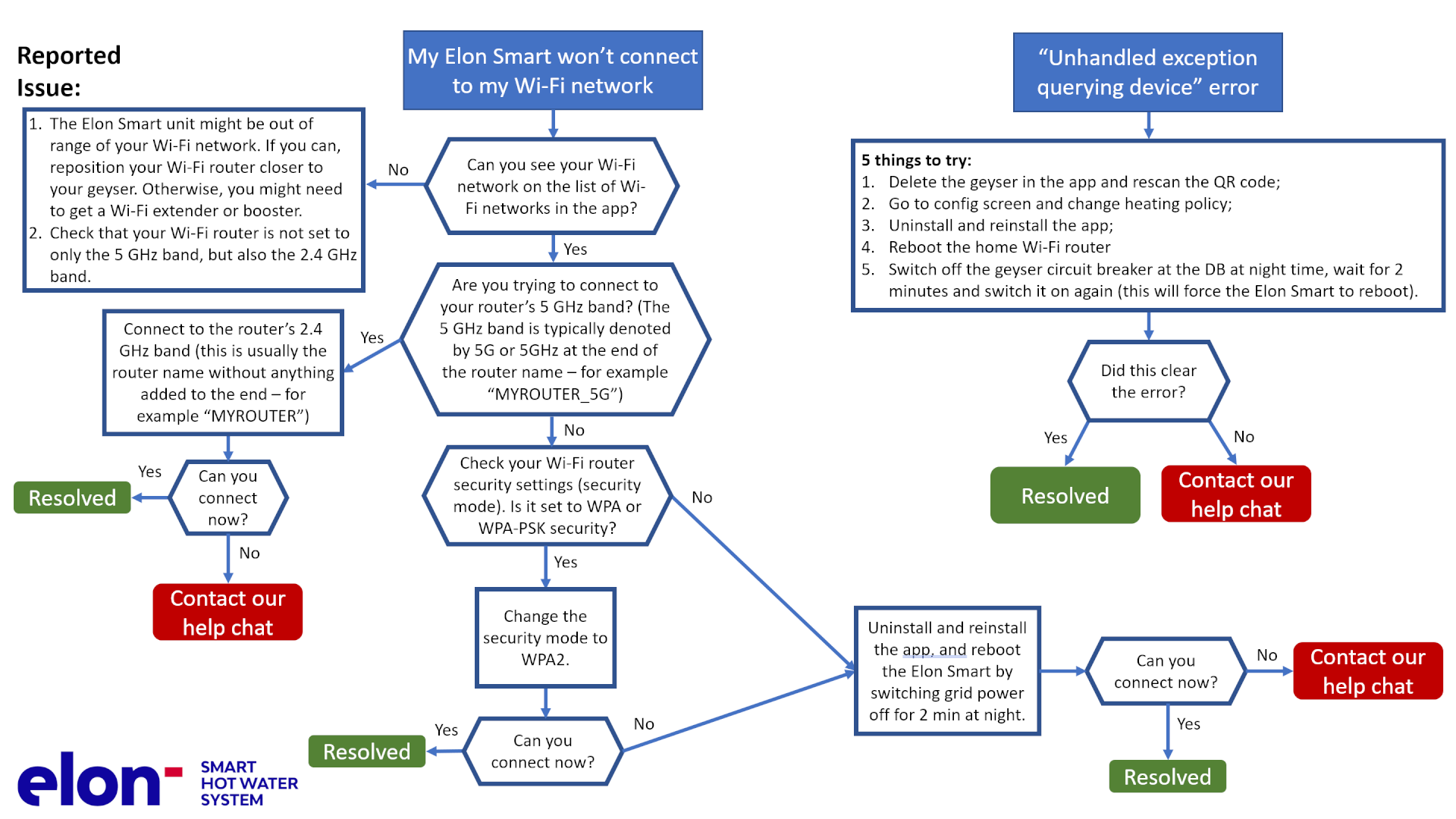
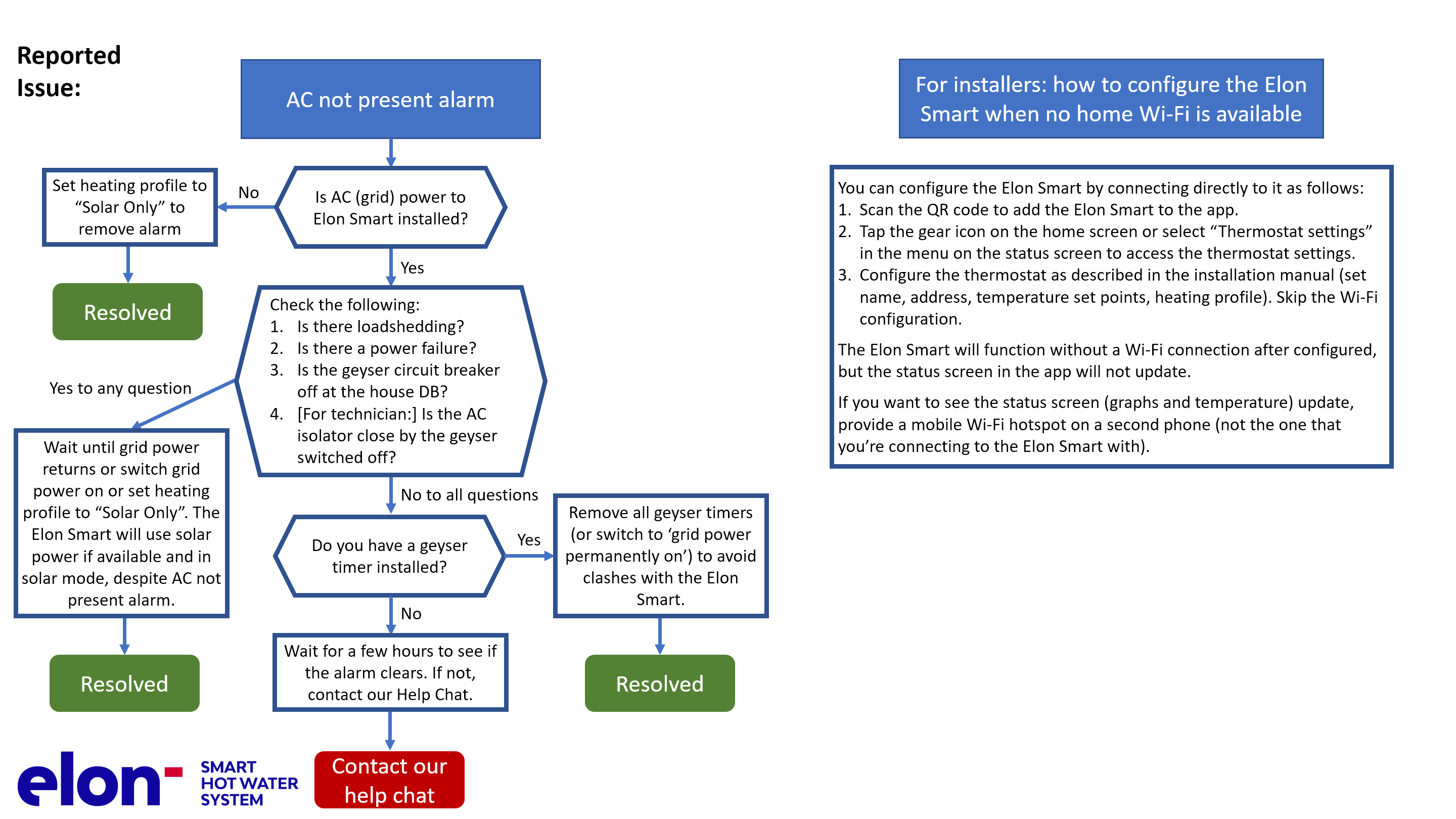
Alarm messages on the Elon Smart app
ID | Alarm message | How to resolve the alarm: USERS | How to resolve the alarm: TECHNICIANS / ELECTRICIANS |
|---|---|---|---|
0 | Element Faulty | Contact your installer / electrician |
|
1 | Switch Failed | Contact our help chat | Contact our help chat |
2 | DC Disconnect Failed | Contact our help chat | Contact our help chat |
3 | AC Not Present | This can be due to several reasons:
This alarm won’t prevent the Elon Smart unit from functioning and heating water with solar (DC) power as long as there is solar power available. You can clear the alarm by switching the AC power on (where applicable), setting the Elon Smart heating profile to Solar Only or you can leave it until AC power returns. | See to the left |
4 | Measurement Failure | Contact our help chat | Contact our help chat |
5 | Disconnected for Safety | When there is a safety-related alarm condition, the Elon Smart will disconnect power from the geyser. To clear this alarm, you need to clear the other safety-related alarm(s). | See to the left |
6 | Water Temperature Measurement Failure | Contact our help chat | Contact our help chat |
7 | Ambient Temperature Exceeded |
| See to the left |
8 | DC Wiring Insulation Failure | Contact your installer / electrician. To operate the Elon Smart whilst the insulation fault has not been located and resolved, you can set the heating profile to Grid Only or switch off the DC disconnect switch. |
|
9 | Insulation Self-Test Failed | Contact your installer / electrician | Check earth wiring. Make sure both earth straps are connected securely to the geyser earth stud. |
10 | AC Wired to DC Input | Contact your installer / electrician | Wire AC to correct input (see Chapter 4 in the Installation Manual). |
11 | DC Wired to AC Input | Contact your installer / electrician | Wire DC to correct input (see Chapter 4 in the Installation Manual). |
12 | DC Not Present | This can be due to several reasons:
This alarm won’t prevent the Elon Smart unit from functioning and heating water with grid (AC) power as long as there is grid power available. You can clear the alarm by:
| See to the left |
13 | DC Input Reversed | Contact your installer / electrician. | The wiring on the Solar input has been installed incorrectly (in reverse). The DC+ (positive) wire has been connected to the DC- (negative) terminal on the Elon Smart and the DC- (negative) wire has been connected to the DC+ (positive) terminal on the Elon Smart. Swap the DC wires around (see Chapter 4 in the Installation Manual). |
14 | Hot Connection | Contact your installer / electrician. | Elon Smart not correctly inserted into geyser element. Switch off all power to the Elon Smart and re-seat (reinsert) the Elon Smart. |
15 | RTC Failed | Contact our help chat | Contact our help chat |
16 | Power Unstable |
|
|
17 | Server Not Available |
| See to the left |
 Check the Elon Smart Wi-Fi settings on the thermostat settings screen (access by tapping the gear icon in the app when at home).